
If your business does not have a website in 2026, you are already losing customers to competitors who do.
That may sound blunt, but it is the reality. When someone in your city searches for the service you offer, Google shows them a list. If your name is not on that list, you simply do not exist for that customer. No second chances, no walk-ins, no referrals from that moment.
A WordPress website fixes that permanently.
Accelerate Your Digital Growth with Osdire
Unlock premium digital tools, web optimization, and specialized infrastructure designed for modern businesses.
Explore Osdire Offers →WordPress is not just a blogging tool anymore. It powers 43% of all websites on the internet today, from small local businesses in Pune and Coimbatore to global brands like BBC News, Sony Music, and TechCrunch. It is fast, flexible, affordable, and built to rank on Google.
This guide is written specifically for two kinds of people: small business owners who want a professional online presence without spending a fortune, and technical professionals who want to understand the full picture not just follow instructions blindly.
By the end of this guide, you will know exactly how to:
- Choose the right domain name and hosting plan for your business
- Install and configure WordPress the right way, the first time
- Select a theme that performs well on Google and looks professional
- Set up the right plugins without slowing your website down
- Configure technical SEO before your first visitor arrives
- Launch with confidence using a pre-launch checklist
No unnecessary detours. Let us get straight into it.
Table of Contents
Why WordPress Is Still the Smartest Choice in 2026
This is a fair question to ask, especially with Wix, Squarespace, and Shopify becoming increasingly popular. So let us answer it properly.
WordPress.org is a free, open-source content management system. You install it on your own hosting server, and it gives you complete control over every aspect of your website design, functionality, SEO, monetisation, and data.
Here is why it remains the best choice for serious businesses in 2026:
Ownership and Control — Your website lives on your server. No platform can shut you down, change your pricing, or restrict your features. Everything belongs to you.
Search Engine Performance — WordPress is built with clean code that search engines understand easily. Combined with the right SEO plugin, WordPress websites consistently outrank websites built on closed platforms.
60,000+ Plugins — Every feature you could possibly need already exists as a plugin, including booking systems, payment gateways, CRM integrations, membership portals, and language translators. No coding required.
Scales With Your Business — Start with a five-page brochure website. Expand into a full eCommerce store with thousands of products later. Same platform, no migration required.
Long-Term Cost Efficiency — No per-transaction fees, no forced plan upgrades, no feature paywalls. You pay for hosting and your domain, that’s largely it.
Now here is something that confuses many first-time users.
Read More Also: Best SEO Company in India
WordPress.com vs WordPress.org — Understand This Before You Begin
These are two entirely different products that share a name. Choosing the wrong one is a common and costly mistake.
| Feature | WordPress.com | WordPress.org |
|---|---|---|
| Software Cost | Free with heavy limitations | Completely free |
| Hosting | Included on their servers | Your choice of hosting |
| Custom Domain | Only on paid plans | Full control from day one |
| Plugin Access | Extremely restricted | 60,000+ plugins |
| Monetisation | Heavily restricted | Complete freedom |
| Data Ownership | WordPress.com owns it | You own everything |
| Custom Code Access | Not available | Full access |
| Best Suited For | Personal hobby blogs | Businesses, professionals, growth |
The verdict is simple: For any business purpose, always choose WordPress.org. Every recommendation in this guide refers to WordPress.org.
What You Need to Build a WordPress Website
Three components and only three are required to get your website live:
1. Domain Name — Your unique address on the internet, such as yourbusiness.com
2. Web Hosting — A server where your website files are stored and served to visitors around the clock
3. WordPress Software — Free, installed on your hosting server, manages everything
That is the complete shopping list. Now, let us go through each one in detail.
Step 1 — Choosing the Right Domain Name
Your domain name is your first brand impression online. Getting it wrong creates problems later with SEO, brand recognition, and business cards. Choose it carefully.
Two Main Approaches:
Brand-Based Domain — Uses your business name, such as mehraaccounting.com thetextilehouse.com. Best when your business name is already recognisable, or you are building a personal brand.
Keyword-Based Domain — Includes what you do and where, such as delhiwebdesigner.com or punecarrental.com. Better for local SEO, Google gives these a slight advantage in location-based searches.
For most Indian small businesses: A keyword-location combination tends to perform better in the early stages when brand awareness is still being built.
Domain Extension Recommendations:
- .com — Always the first choice. Universal trust signal across all demographics
- .in — Useful for businesses targeting exclusively Indian customers
- .co.in — Works for established Indian businesses and government-adjacent organisations
- .net or .org — Consider these only if .com is genuinely unavailable
Rules for a Good Domain Name:
- Keep it under 15 characters — shorter domains are easier to remember and type
- Avoid numbers and hyphens — they create confusion when shared verbally
- Make sure it is easy to spell — if someone hears it spoken, they should be able to type it correctly
- It should give a basic sense of your business when someone reads it
Where to Register:
- Hostinger India — Rs. 500 to Rs. 900 per year, often free with a hosting plan
- Namecheap — Good pricing, especially for international-facing businesses
- GoDaddy — Popular and reliable, but renewal prices are higher than registration prices
A smart practice for technical professionals: Register your domain and hosting with separate providers. If you ever need to change your hosting company, you will not need to transfer your domain just need to update the DNS records.
Step 2 — Selecting the Right Hosting Plan
Your hosting provider is the foundation of your website. Poor hosting leads to slow page loads, frequent downtime, and security vulnerabilities, all of which directly damage your Google rankings and customer trust.
Understanding Hosting Types:
Shared Hosting — Multiple websites share resources on one server.
- Cost: Rs. 79 to Rs. 299 per month
- Best for: New websites, 0 to 10,000 monthly visitors
- Limitation: A traffic spike on another website on the same server can slow yours down
VPS Hosting — A virtual private server with dedicated resources allocated to your website.
- Cost: Rs. 500 to Rs. 2,000 per month
- Best for: Growing businesses with 10,000 to 100,000 monthly visitors
- Advantage: Consistent, predictable performance
Managed WordPress Hosting — Hosting specifically optimised for WordPress, with automatic updates, backups, and security managed for you.
- Cost: Rs. 800 to Rs. 3,000 per month
- Best for: Businesses that want performance without the technical management
Top Hosting Recommendations for India in 2026:
Hostinger Business Plan — Best Value for Money
- Price: Rs. 149 to Rs. 249 per month
- LiteSpeed web server with NVMe SSD storage significantly faster than standard hosting
- Free SSL certificate and domain included in the first year
- One-click WordPress installation
- 99.9% uptime guarantee
- Recommended for: Most small businesses starting out
Bluehost Plus — Officially Recommended by WordPress
- Price: Rs. 299 to Rs. 499 per month
- Free domain and SSL included
- Unlimited websites on higher-tier plans
- Reliable 24/7 customer support
- Recommended for: Businesses that want a trusted, well-documented hosting solution
SiteGround GrowBig — Best for Performance-Focused Websites
- Price: Rs. 499 to Rs. 799 per month
- SuperCacher technology for faster load times
- Daily automatic backups included
- A staging environment available essential for testing changes before going live
- Recommended for: Professionals who prioritise performance and support quality
Cloudways — Best for Technical Professionals
- Price: Rs. 600 to Rs. 1,500 per month
- Cloud infrastructure from DigitalOcean, AWS, or Google Cloud
- Full server control with a managed interface
- Recommended for: Developers and agencies managing multiple client websites
Six Things to Verify Before Choosing Any Hosting Plan:
- Uptime guarantee: 99.9% minimum, anything lower is unacceptable for a business website
- Server location: India or Singapore servers give Indian visitors 40 to 60% faster load times
- PHP version support: PHP 8.2 or higher is required for modern WordPress in 2026
- SSL certificate: Must be included free, HTTPS is a Google ranking factor
- Backup policy: Automated daily backups, not manual, and stored off-server
- Support quality: 24/7 live chat is essential, avoid hosting providers with ticket-only support
Step 3 — Installing WordPress Correctly
This is where your website actually comes into existence. The good news is that in 2026, every reputable hosting provider offers one-click WordPress installation the technical complexity of the past is largely gone.
Method 1: One-Click Installation (Recommended for Most Users)
Step 1: Log into your hosting account using your registered email and password.
Step 2: Open your control panel. Hostinger uses hPanel; most other providers use cPanel.
Step 3: Search for “WordPress” or look for “Auto Installer” in the tools section.
Step 4: Click “Install WordPress” or “Create Website.”
Step 5: Fill in the required details:
- Domain: Select the domain where you want WordPress installed
- Site Title: Your business name
- Admin Username: Never use “admin”; this is the most targeted username in automated hacking attempts
- Admin Password: Minimum 12 characters, combining uppercase letters, lowercase letters, numbers, and special characters
- Admin Email: An email address you check regularly, all WordPress notifications go here
Step 6: Click the install button and wait two to three minutes.
Step 7: You will receive a confirmation email with your WordPress dashboard link. Access it at yourdomain.com/wp-admin.
Method 2: Manual Installation (For Technical Professionals)
If you prefer direct server access and full control:
- Download the latest WordPress version from WordPress.org
- Upload the files to your server via FTP or SFTP using a client like FileZilla
- Create a MySQL database and database user in your hosting control panel
- Edit
wp-config.phpwith your database name, username, and password - Open your domain in a browser the WordPress installation wizard launches automatically
- Complete the five-step wizard the entire process takes under ten minutes
Five Settings to Configure Immediately After Installation:
Permalink Structure: Go to Settings > Permalinks and select “Post Name.” The default WordPress URL structure uses ?p=123 a format that is poor for SEO and unreadable for users. Post Name creates clean, keyword-rich URLs like yourdomain.com/your-page-title.
Timezone: Go to Settings > General and set your timezone to “Asia/Kolkata.” This affects post scheduling, analytics timestamps, and backup scheduling.
Comment Moderation: Go to Settings > Discussion and enable “Comment must be manually approved.” This prevents spam comments from publishing automatically on your website.
Search Engine Visibility: Go to Settings > Reading and confirm that “Discourage search engines from indexing this site” is unchecked. During development, this is often checked leaving it checked on a live website means Google will never index your pages.
Admin Email Verification: Go to Settings > General and confirm the administration email address is one you actively monitor. Security alerts, update notifications, and contact form submissions all depend on this.
Step 4 — Choosing and Installing a Theme
Your theme controls the visual appearance, layout structure, and a significant portion of your website’s performance. Many business owners choose themes based purely on aesthetics and then wonder why their website loads slowly or ranks poorly.
What Actually Matters When Choosing a Theme:
Page Speed Performance — This is the single most important factor. Test any theme you are considering on Google PageSpeed Insights before committing to it. In 2026, Core Web Vitals are a confirmed Google ranking factor a heavy theme will damage your rankings regardless of how good your content is.
Mobile Responsiveness — Google uses mobile-first indexing, meaning it evaluates your mobile version first when determining your ranking. Test your chosen theme on a real mobile device, not just a browser emulator.
Active Development and Update History — Check the “Last Updated” date in the WordPress theme repository. A theme that has not been updated in over 12 months poses a security risk and may not be compatible with the latest WordPress version.
Compatibility With Page Builders — If you plan to use Elementor or another page builder, verify that your theme explicitly supports it. Incompatibilities create layout issues that are time-consuming to resolve.
Top Recommended Themes for 2026:
Astra — Best Overall Free Theme Astra is under 50KB in size remarkably lightweight. It loads fast out of the box, requires no configuration for speed, and includes over 250 professionally designed starter templates that you can import and customise. It works seamlessly with every major page builder and is fully WooCommerce compatible. For nine out of ten small business websites, Astra is sufficient without spending anything on a premium theme.
Kadence — Best Free Theme for Technical Professionals Kadence offers granular control that developers appreciate, full site editing support, a built-in header and footer builder, advanced typography controls, and consistent PageSpeed scores above 90. It is the better choice if you want precision control over every layout element without purchasing a premium theme.
GeneratePress — Best for Speed-Obsessed Websites GeneratePress is arguably the lightest WordPress theme available. It has no visual page builder dependency, loads exceptionally fast on even low-quality hosting, and is structured with clean hooks and filters that developers can extend easily. Agencies building multiple client websites often use GeneratePress as their default starting theme.
Blocksy — Best for Modern Design Aesthetics Blocksy is optimised for the native WordPress block editor, includes built-in dark mode support, and offers excellent WooCommerce integration. If you prefer a contemporary, clean design without needing a separate page builder, Blocksy is an excellent choice.
How to Install a Theme:
- Go to
Appearance > Themes > Add New Themein your WordPress dashboard - Type the theme name in the search box
- Click “Install” then “Activate”
- If the theme offers starter templates, import one that matches your industry — starting from a pre-built layout is significantly faster than building from scratch
Step 5 — Building Your Plugin Stack
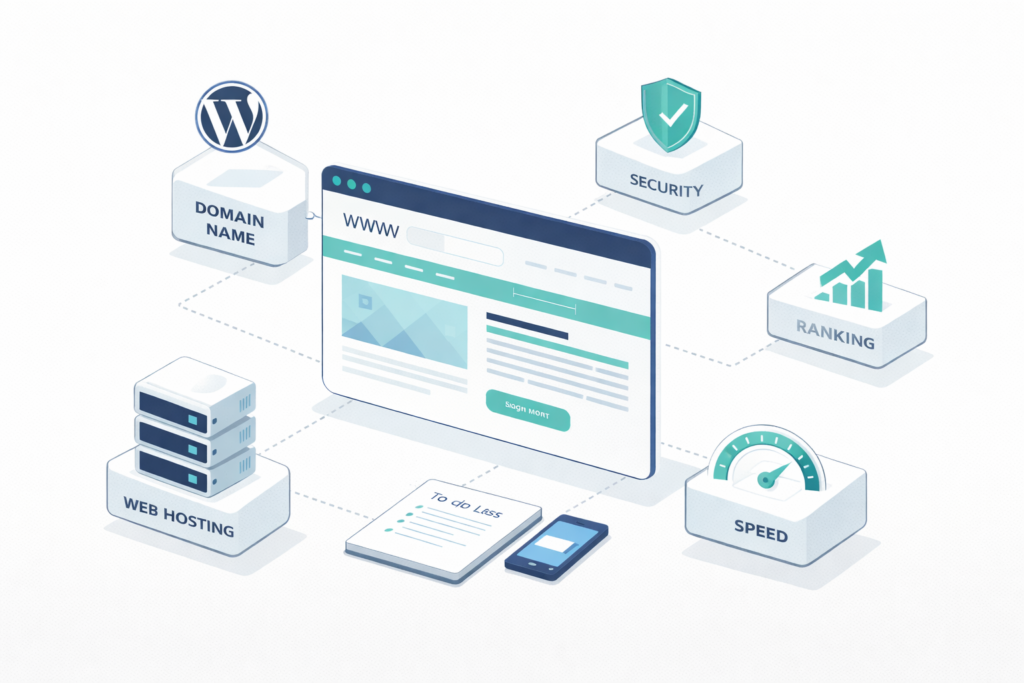
Plugins are what make WordPress genuinely powerful, every feature you could need is available without writing a single line of code. However, this is also where most WordPress websites go wrong.
Every plugin you install adds to your website’s load time and increases its attack surface. The discipline is not in adding plugins it is in choosing only what you actually need.
The Core Plugin Stack for Every WordPress Website:
Rank Math — SEO (Free)
In 2026, Rank Math is the leading free WordPress SEO plugin. It provides per-page SEO scoring and real-time recommendations, automatic XML sitemap generation, direct Google Search Console integration, schema markup generation, and a redirect manager, all within the free version. Install it immediately after WordPress and run the setup wizard to connect your Google Search Console account.
LiteSpeed Cache or WP Rocket — Speed Optimisation
Page speed directly impacts conversion rates. Research consistently shows that a one-second delay in page load time reduces conversions by approximately seven percent. If you are on Hostinger, LiteSpeed Cache is free and integrates perfectly with their LiteSpeed server infrastructure. For other hosting providers, WP Rocket (approximately Rs. 3,500 per year) is the best investment you can make in your website’s performance.
Wordfence Security — Website Security (Free)
WordPress websites face over 90,000 automated attack attempts every day. Wordfence provides real-time malware scanning, login attempt rate limiting, two-factor authentication, and firewall protection. After installation, manually enable the firewall it is not active by default. This plugin is not optional it is essential infrastructure.
UpdraftPlus — Automated Backups (Free)
No matter how well you configure your website, things can go wrong hosting failures, accidental deletions, successful hacks. UpdraftPlus solves this by scheduling automatic backups and storing them in Google Drive or Dropbox. Configure it to back up daily for active websites and weekly for static ones, and retain at least 30 days of backup history. Critically, never store your backups on the same server as your website.
WPForms — Contact Forms (Free Version Available)
Every business website needs a working contact form. WPForms offers a drag-and-drop form builder that requires no technical knowledge. For Indian businesses, supplement your contact form with a WhatsApp direct link conversion rates from WhatsApp CTAs are consistently higher than email forms for local Indian customers.
WP Mail SMTP — Reliable Email Delivery (Free)
This plugin is overlooked by most guides and responsible for a significant amount of “I never received the contact form submission” complaints. WordPress’s default email system frequently fails to deliver messages because most hosting servers are not configured as mail servers. WP Mail SMTP routes your WordPress emails through a reliable provider like Gmail or SendGrid, ensuring every contact form submission and notification actually reaches you.
Additional Plugins Based on Your Business Type:
| Business Goal | Recommended Plugin | Cost |
|---|---|---|
| Online Store | WooCommerce | Free |
| Appointment Booking | Amelia | Rs. 5,000/year |
| Membership Portal | MemberPress | Rs. 8,000/year |
| Analytics Dashboard | MonsterInsights | Free / Paid |
| WhatsApp Button | WP Social Chat | Free |
| Image Compression | ShortPixel | Free / Paid |
| Broken Link Detection | Broken Link Checker | Free |
A practical limit to keep in mind: Try to keep your active plugin count under 20. Review your plugin list every three months and deactivate anything you no longer actively use. An inactive plugin that is still installed still poses a security risk and may still load code on your website.
Step 6 — Building Your Website Pages
Once your technical foundation is in place, your content architecture determines both your user experience and your SEO performance. These are the core pages every professional WordPress website needs.
Home Page
Your home page is your digital shop front. A visitor should understand what you do, who you do it for, and what they should do next within five seconds of landing on your page. The structure that consistently converts best follows this pattern: a clear headline explaining your value, a brief supporting description, a strong primary call-to-action button, social proof elements such as client logos or testimonials, a brief services overview, and a secondary call-to-action at the bottom.
Avoid the common Indian business website mistake of loading the home page with lengthy paragraphs about company history. Lead with what the customer gets, not what you have achieved.
Services Pages
Create a separate page for each individual service you offer. This is one of the most powerful local SEO strategies available to small businesses. For example, a chartered accountant firm should have separate pages for “GST Filing Services,” “Income Tax Return Filing,” “Company Registration Services,” and “Tax Audit Services”, each page ranking for its own specific keywords rather than competing with each other on one generic page.
About Page
People do business with people they trust, especially in India, where personal relationships drive purchasing decisions. Your About page should tell a genuine story: how you started, what problem you solve, specific achievements with real numbers, and the team behind the business. Avoid corporate language. Authenticity builds trust faster than formal credentials in most cases.
Contact Page
Your contact page is your lead generation endpoint, treat it accordingly. Include a WhatsApp direct link (format: https://wa.me/91XXXXXXXXXX), a clickable email address, a contact form, your phone number, and a Google Maps embed if you have a physical location. The easier you make it to contact you, the more enquiries you will receive.
Blog Section
A regularly updated blog signals to Google that your website is active and authoritative. For a small business owner, two quality articles per month is a realistic and effective publishing schedule. Focus your topics on questions your target customers are actively searching for those questions are the keywords your blog posts will rank for.
Step 7 — Technical SEO Configuration
This section is where most standard WordPress guides stop short. Properly configuring your technical SEO before launch gives your website a significant head start in Google rankings.
Google Search Console Setup
Google Search Console is a free tool that shows you exactly how Google sees your website, which pages are indexed, which keywords you are appearing for, and any technical errors Google encounters.
To set it up: visit search.google.com/search-console Add your domain as a property, verify ownership using the HTML tag method (Rank Math makes this a single copy-paste step), then submit your XML sitemap at yourdomain.com/sitemap_index.xml. Rank Math generates this sitemap automatically.
Google Analytics 4 Setup
Without analytics, you are flying blind. GA4 shows you where your visitors come from, which pages they read, how long they stay, and which pages lead to contact form submissions. Install the MonsterInsights plugin, connect it to your GA4 property, and your dashboard will show visitor data directly inside WordPress.
Core Web Vitals Optimisation
Google uses three specific metrics collectively called Core Web Vitals as ranking factors in 2026:
Largest Contentful Paint (LCP): Measures how quickly the main content of a page loads. Target: under 2.5 seconds. Primary fix: compress your hero image and enable caching.
Interaction to Next Paint (INP): Measures how quickly your page responds to user interactions. Target: under 200 milliseconds. Primary fix: avoid loading unnecessary JavaScript.
Cumulative Layout Shift (CLS): Measures how much your page layout shifts unexpectedly while loading. Target: under 0.1. Primary fix: always define width and height attributes on every image you upload.
Check your scores monthly at pagespeed.web.dev Catching issues early is far simpler than fixing them after your content is live.
HTTPS Configuration
Install your SSL certificate through your hosting control panel most providers offer free Let’s Encrypt SSL. Then go to Settings > General WordPress and ensure both the WordPress Address and Site Address begin with https://. Install the Really Simple SSL plugin, which automatically resolves mixed content warnings that appear when some resources still load over HTTP.
Realistic Cost Breakdown for Indian Businesses in 2026
Building It Yourself:
| Component | Annual Cost |
|---|---|
| Domain Name (.com) | Rs. 800 to Rs. 1,500 |
| Shared Hosting | Rs. 1,000 to Rs. 3,000 |
| Premium Theme (one-time, optional) | Rs. 3,000 to Rs. 8,000 |
| Essential Paid Plugins | Rs. 2,000 to Rs. 5,000 |
| Total — Year One | Rs. 4,000 to Rs. 12,000 |
| Total — Year Two Onwards | Rs. 2,000 to Rs. 5,000 |
Hiring a Professional Developer:
| Service | Cost Range |
|---|---|
| Basic Business Website (5 pages) | Rs. 8,000 to Rs. 20,000 |
| Professional Business Website | Rs. 20,000 to Rs. 50,000 |
| eCommerce Website | Rs. 30,000 to Rs. 1,00,000+ |
| Monthly Maintenance | Rs. 500 to Rs. 2,000 per month |
Honest perspective for business owners: Building it yourself is absolutely possible, but it takes time that could be spent on your core business. A professionally built website avoids costly mistakes, delivers better results from day one, and frees you to focus on what generates actual revenue.
Maajanki Web Tech, based in Champaran, Bihar, provides affordable WordPress development and complete digital marketing solutions for small businesses and professionals across India from domain setup to fully SEO-optimised, conversion-ready websites. Contact directly on WhatsApp for a free initial consultation.
Pre-Launch Checklist — Complete This Before Going Live
Technical:
- SSL certificate is active, and the browser shows the padlock icon
- Search engine indexing is enabled in
Settings > Reading - XML sitemap submitted to Google Search Console
- Google Analytics 4 is connected and receiving data
- All pages tested on a real mobile device
- Contact form tested — submission received in your inbox
- Page speed score above 70 on mobile (Google PageSpeed Insights)
- Automated backup system active and configured
Content:
- No Lorem Ipsum placeholder text remaining anywhere on the site
- All images compressed below 150KB where possible
- Alt text added to every image
- No broken links — verified with Broken Link Checker plugin
- Privacy Policy page published (required for GDPR compliance)
- All spelling and grammar reviewed
Business:
- WhatsApp contact link tested and working
- Email address is clickable (mailto link)
- Google Business Profile created and website URL added
- Social media profile links added to your website footer
Conclusion
Building a WordPress website in 2026 is genuinely achievable for any small business owner or professional with or without a technical background. The process is straightforward when approached in the right sequence: choose your domain thoughtfully, invest in reliable hosting, install WordPress with the correct initial settings, select a fast and well-maintained theme, build a disciplined plugin stack, create content that serves your customers, configure your technical SEO foundations, and verify everything before going live.
The most important thing to understand is that your website is not a one-time project. It is a long-term business asset that grows in value as you publish more content, earn more backlinks, and improve your technical configuration over time.
Your action plan for this week:
- Check if your preferred domain name is available — use Hostinger or Namecheap, both of which offer free domain availability search
- Select and purchase a reliable hosting plan — Hostinger India’s Business plan is the best starting point for most businesses
- If the technical setup feels overwhelming — reach out to Maajanki Web Tech on WhatsApp for a free consultation and quote
Do not wait for a perfect website. A live, imperfect website outperforms a perfect website that never gets published. Your website is your hardest-working employee available 24 hours a day, seven days a week, generating leads while you sleep.
Frequently Asked Questions
Q1. How long does it take to build a WordPress website for a small business?
If you are building it yourself for the first time, three to seven days is a realistic expectation. The technical installation takes two to three hours, but writing content, customising your design, and testing everything properly takes additional time. If you hire a professional developer, a complete business website is typically delivered within five to fifteen working days, depending on complexity and how quickly you provide your content and branding materials.
Q2. Do I need any coding knowledge to build a WordPress website?
No coding knowledge is required. WordPress is specifically designed so that non-technical users can build and manage complete websites using visual tools. Themes provide your design framework, page builders like Elementor let you arrange layouts by dragging and dropping, and plugins add functionality at the click of a button. Coding knowledge is only needed if you want to build completely custom features not available through existing plugins.
Q3. What is the difference between a free and a paid WordPress theme?
Free themes like Astra and Kadence are genuinely excellent and sufficient for most business websites. Premium themes typically offer more pre-built design templates, dedicated customer support with faster response times, more advanced customisation options, and regular updates with a clearer development roadmap. For a new business website, start with a reputable free theme. Invest in a premium theme when you have specific design requirements that free options cannot meet.
Q4. How long does it take for a WordPress website to rank on Google?
For a brand new website targeting competitive keywords, three to six months is a realistic timeframe for meaningful organic traffic. Local searches, for example, “web designer in Nagpur” or “CA firm in Jaipur” tend to rank faster, sometimes within four to eight weeks, because local competition is lower. The timeline accelerates significantly with consistent quality content publishing, proper technical SEO configuration, and a Google Business Profile linked to your website.
Q5. Is WordPress suitable for an e-commerce website?
Yes, WooCommerce, the leading WordPress eCommerce plugin, powers approximately 28% of all online stores globally. For Indian businesses, Razorpay, PayU, and Cashfree all integrate seamlessly with WooCommerce without any custom development. A store with up to 500 products runs perfectly well on a good shared hosting plan. Beyond that, a VPS or managed hosting plan is recommended for consistent performance during traffic peaks.
Q6. Which WordPress hosting provider is best for India in 2026?
For new small business websites, Hostinger India offers the best combination of performance and affordability, with LiteSpeed servers, NVMe storage, free SSL, and pricing starting at Rs. 79 per month. For growing businesses that prioritise support quality, Bluehost and SiteGround are more reliable choices despite being slightly more expensive. For technical professionals and agencies managing multiple websites, Cloudways on DigitalOcean infrastructure provides the best performance and control.
Q7. How do I keep my WordPress website secure?
Five steps cover the essential security requirements: install Wordfence Security and enable the firewall, use a unique admin username that is not “admin,” use a strong password with at least 12 characters, keep WordPress, all themes, and all plugins updated at all times, and configure automated off-server backups with UpdraftPlus. The majority of WordPress security incidents happen because of outdated software or weak login credentials, addressing these two factors eliminates the majority of your risk exposure.